



 Heritage Bank of the Ozarks
1 min read
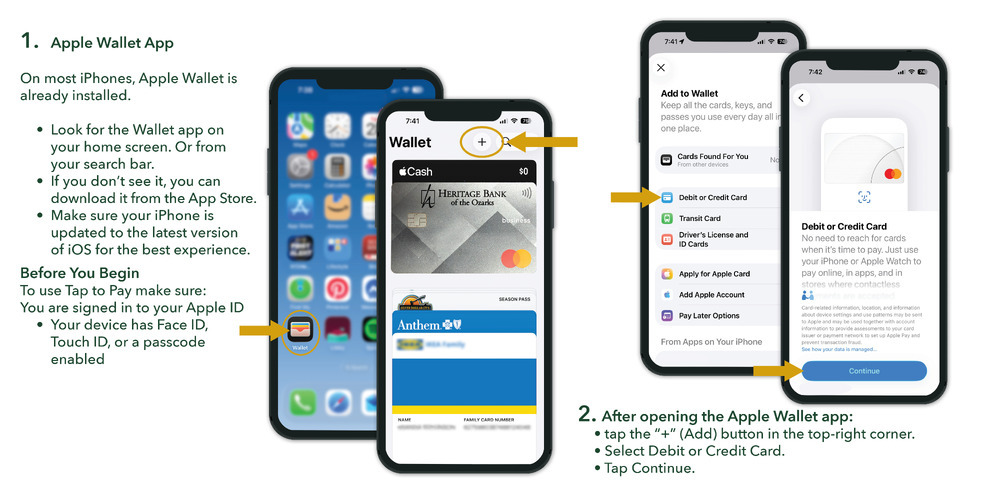
Do You Need to Download Anything?
1. On most iPhones, Apple Wallet is already installed.
-
Look for the Wallet app on your home screen. Or from your search bar.
-
If you don’t see it, you can download it from the App Store.
-
Make sure your iPhone is updated to the latest version of iOS for the best experience.
Before You Begin
To use Tap to Pay make sure:
You are signed in to your Apple ID
-
Your device has Face ID, Touch ID, or a passcode enabled
How to Add a Debit or Credit Card
2. After opening the Apple Wallet app:
-
tap the “+” (Add) button in the top-right corner.
-
Select Debit or Credit Card.
-
Tap Continue.
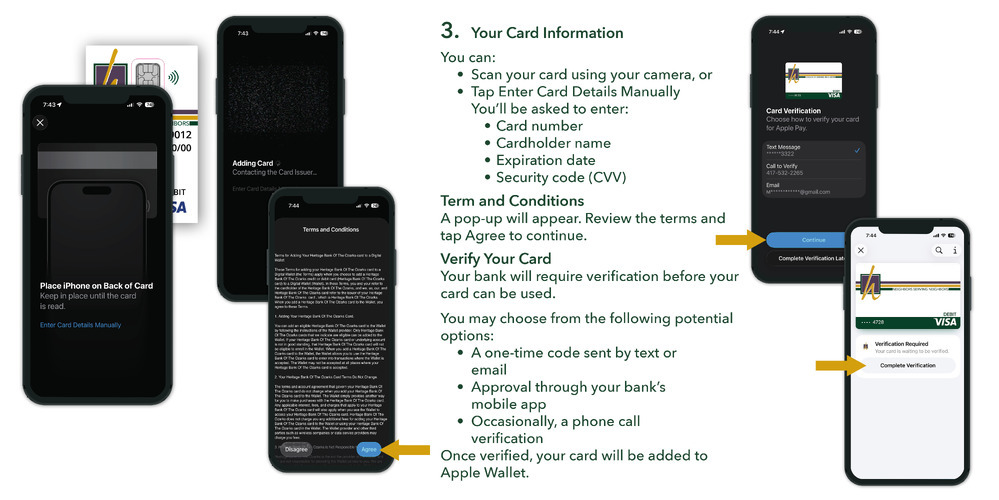
3. Your Card Information
You can:
-
Scan your card using your camera, or
-
Tap Enter Card Details Manually
-
Card number
-
Cardholder name
-
Expiration date
-
Security code (CVV)
-
Terms and Conditions
A pop-up will appear. Review the terms and tap Agree to continue.
Verify Your Card
Your bank will require verification before your card can be used.
You may choose from the following potential options:
-
A one-time code sent by text or email
-
Approval through your bank’s mobile app
-
Occasionally, a phone call verification
Once verified, your card will be added to Apple Wallet.
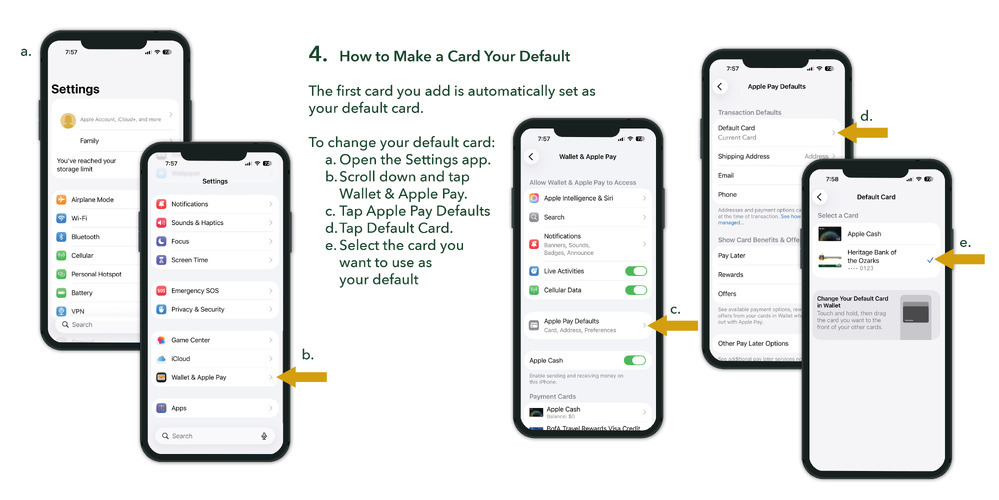
4. How to Make a Card Your Default
The first card you add is automatically set as your default card.
To change your default card:
a. Open the Settings app.
b. Scroll down and tap Wallet & Apple Pay.
c. Tap Apple Pay Defaults
d. Tap Default Card.
e. Select the card you want to use as your default
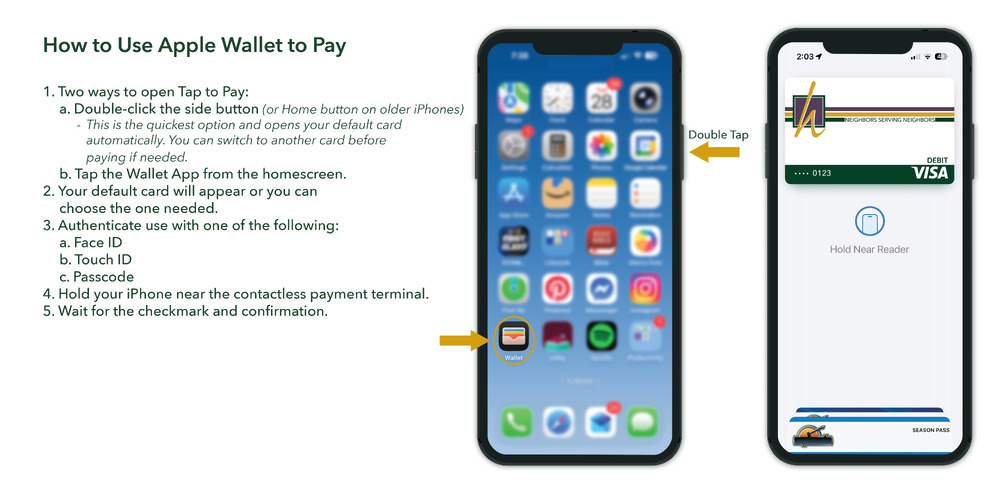
How to Use Apple Wallet to Pay
1. Two ways to open Tap to Pay:
a. Double-click the side button (or Home button on older iPhones)
- This is the quickest option and opens your default card automatically. You can switch to another card before paying if needed.
b. Tap the Wallet App from the homescreen.
2. Your default card will appear, or you can choose the one needed.
3. Authenticate use with one of the following:
a. Face ID
b. Touch ID
c. Passcode
4. Hold your iPhone near the contactless payment terminal.
5. Wait for the checkmark and confirmation.

 Heritage Bank of the Ozarks
.jpg)