



 Heritage Bank of the Ozarks
Add Debit Card to Apple Pay
 Heritage Bank of the Ozarks
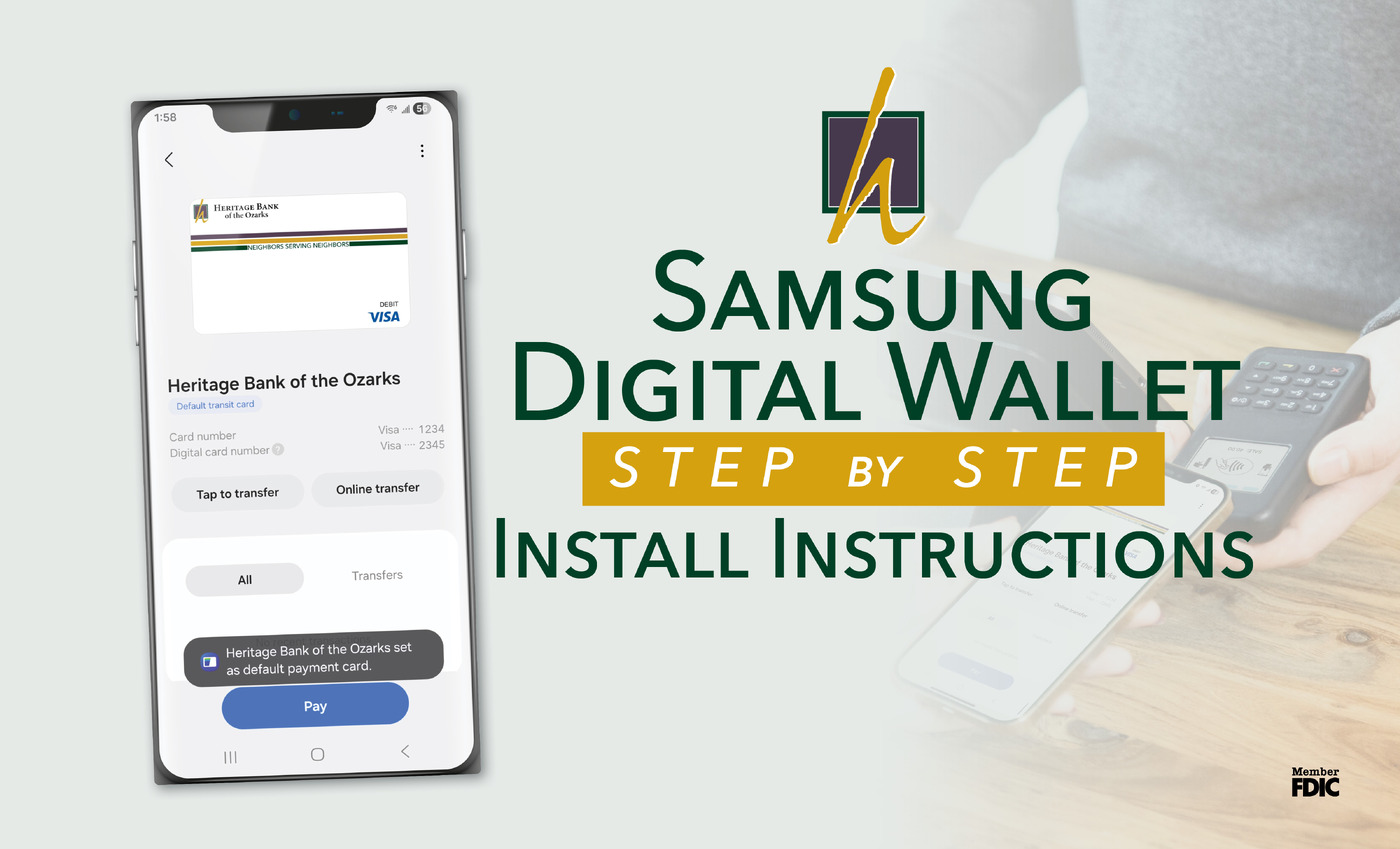
Learn how to add your debit or credit card to Samsung Wallet with simple step-by-step instructions so you can tap to pay quickly and securely with...
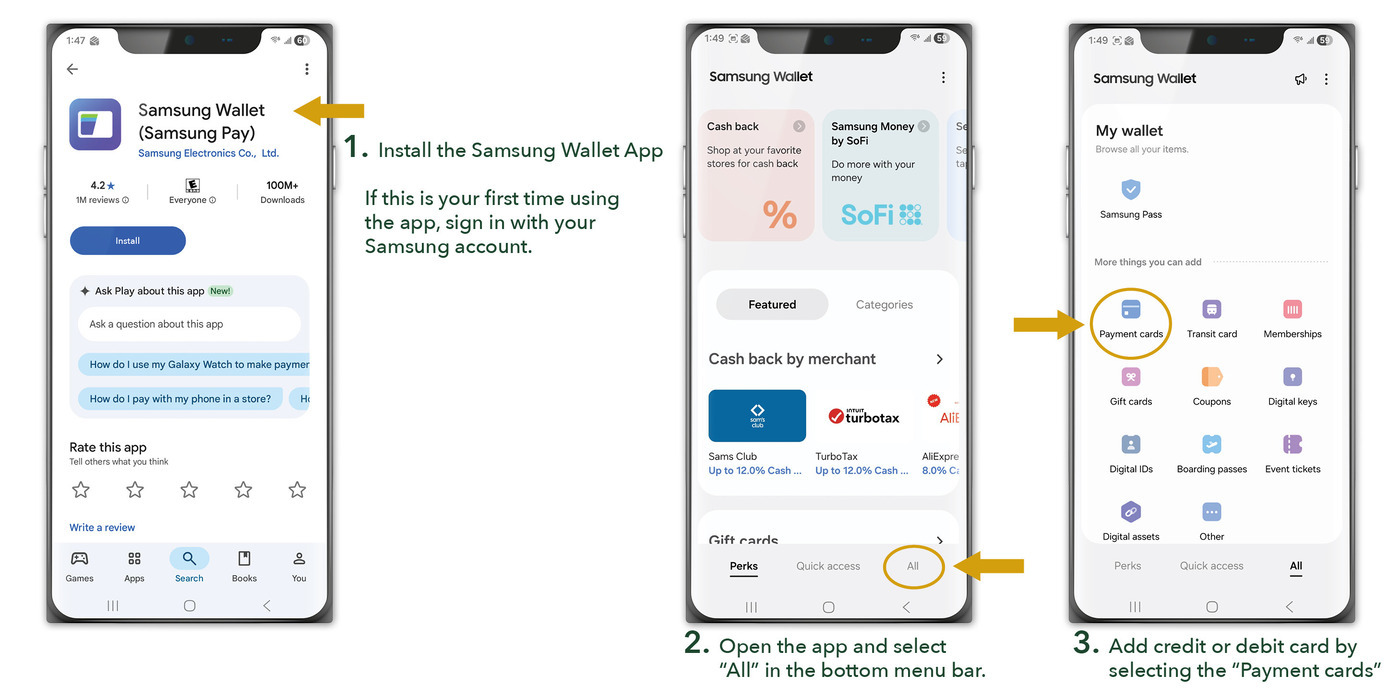
1. Use your app store and search for Samsung Wallet, formerly known as Samsung Pay.
Click the Install button.
If this is your first time using the app, sign in with your Samsung account.
2. Open the app and select "All" in the bottom menu bar.
3. Add a debit or credit card by selecting the "Payment cards" option.
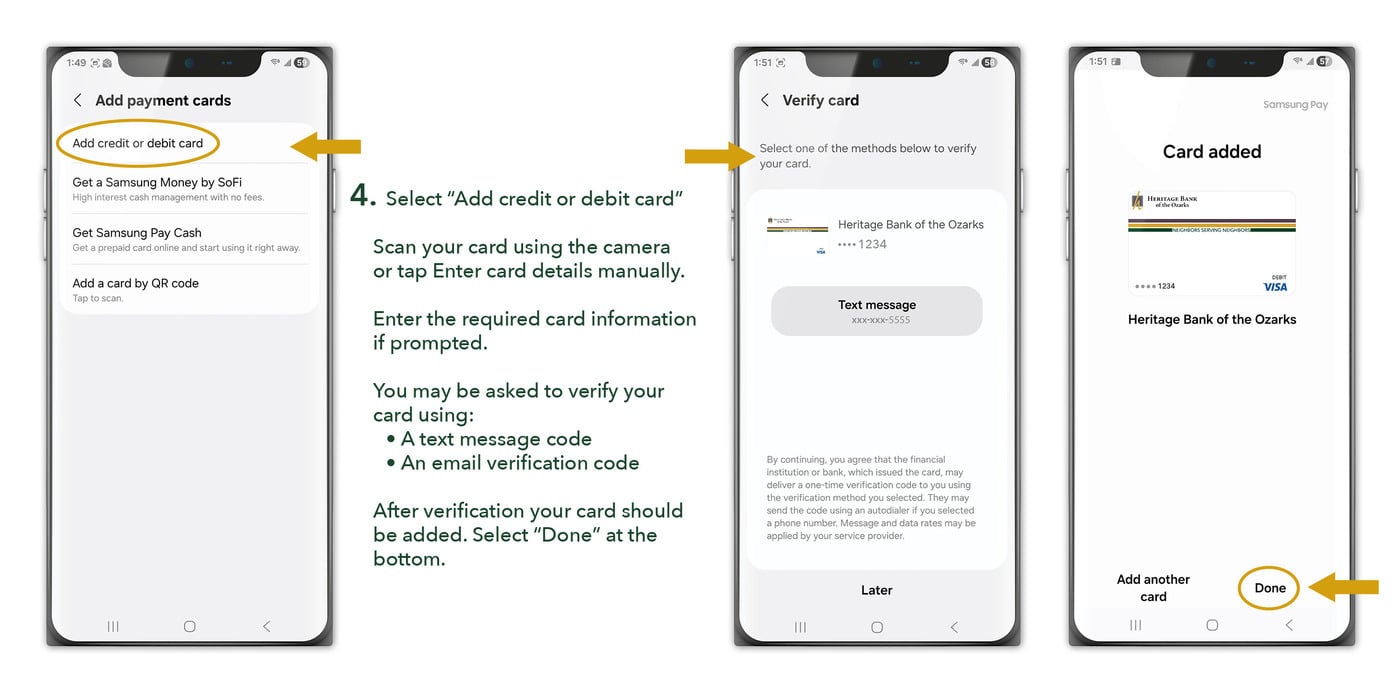
4. Select "add credit or debit card."
Scan your card using the camera OR select "Enter card details" manually.
Enter the required card information if prompted.
You may be asked to verify your card using:
After verification, your card should be added. Select "Done" at the bottom.
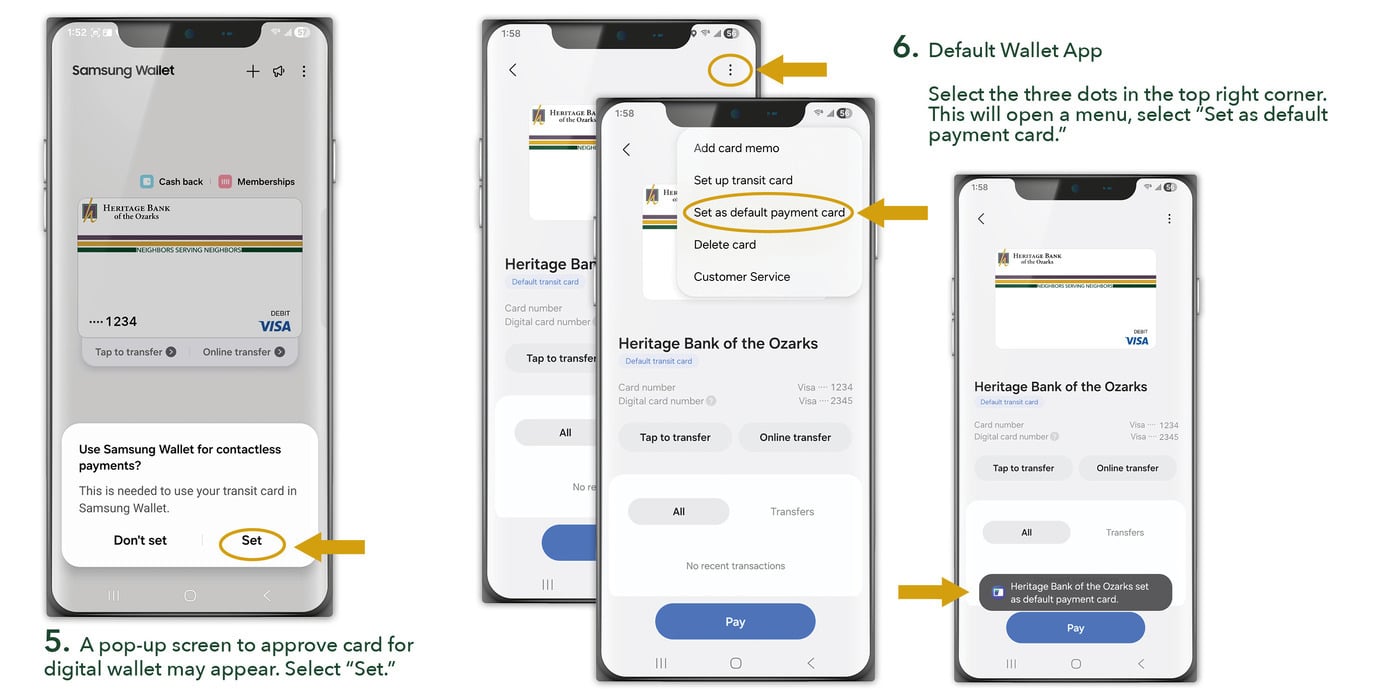
5. A pop-up screen to approve card for digital wallet may appear. Select “Set.”
6. Select the three dots in the top right corner. This will open a menu, select "Set as default payment card."
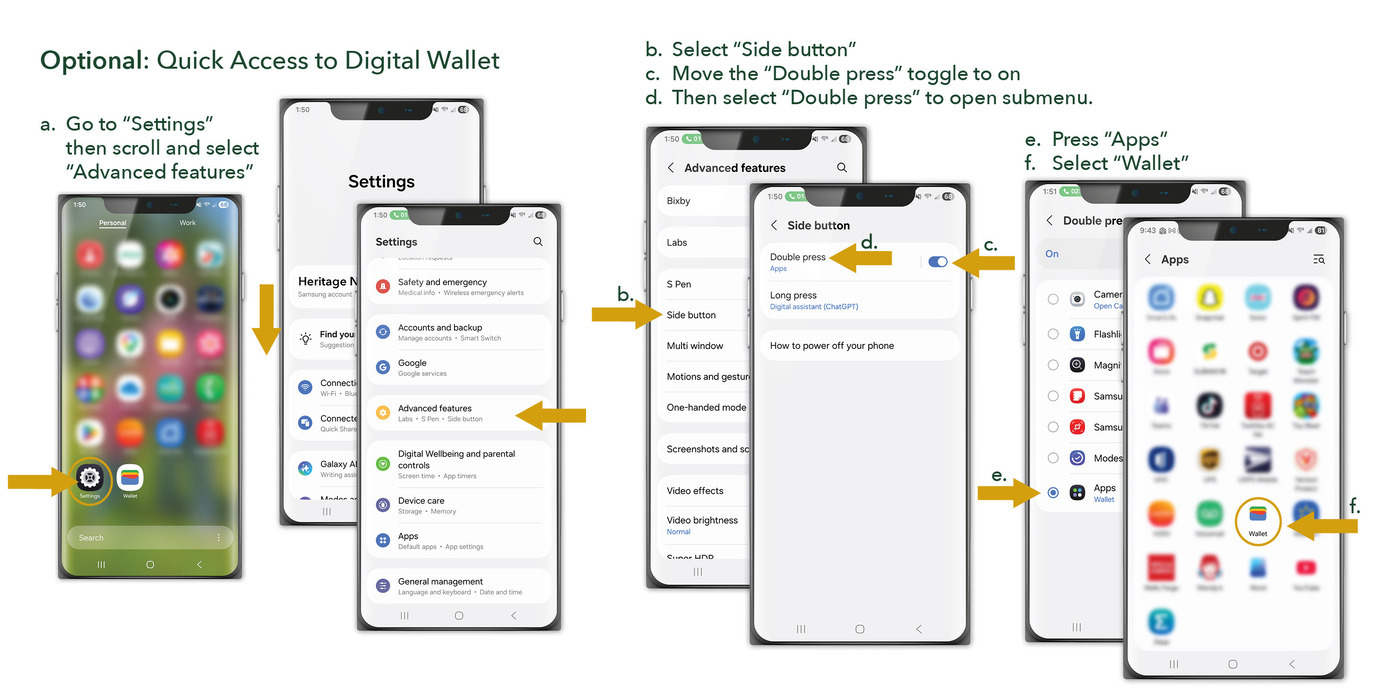
a. Go to "Settings' then scroll and select "Advanced features"
b. Select "Side button"
c. Move the "Double press" toggle to on
d. Then select "Double press" to open
e. Press "Apps"
f. Select "Wallet"


Learn how to add your debit or credit card to Samsung Wallet with simple step-by-step instructions so you can tap to pay quickly and securely with...

Open your personal account online with Heritage Bank—quick, easy steps and image guides. Banking help from Neighbors who make it simple, not...
.jpg)
Start reaching your financial goals in 2026 with Heritage Bank's 3 simple steps: assess your current finances, set a realistic goal, and seek advice...